To get started with Privileged Access Management,
-
Have Unified PAM downloaded and installed on a Windows server in your network
-
If you have crossed the trial period - obtain a valid license from Securden.
-
Go through the PAM implementation requirements.
Starting the PAM Service
- To begin, start the PAM service from the Windows Services Manager. (services.msc)
- Locate Securden PAM Service and start or stop it as required. This takes care of starting and stopping the dependent services too.
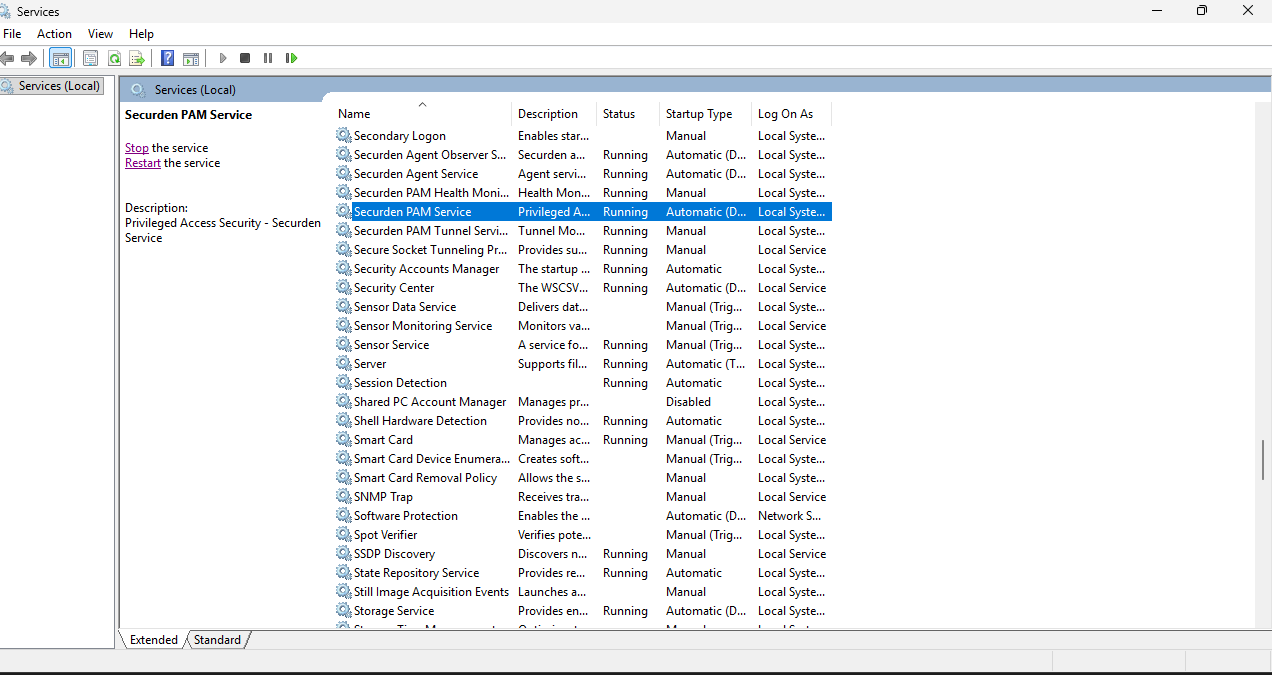
Other services (Not mandatory for initial startup) - ‘PAM Health Monitor Service’ - This keeps a check on the running status of the PAM server, and associated processes.
‘PAM Tunnel Service’ - Used when the vendor access portal is created in Securden.
Note
You need not start Web Service – Securden PAM manually, as Securden automatically takes care of this.
Troubleshooting tips
- The PAM Service/Web Service does not start automatically
Ensure the following:
- The Securden-cert.pem file must be present in the /Conf folder.
- Starting of the service ‘Web Service – Securden PAM’ is set to Manual.
- The ‘Securden PAM Service’ needs to be set to Automatic (Delayed Start) .
If the PAM service still fails to start, you may have to re-install the product and attempt to initiate it.
Launching the Web Interface.
Once the services have started running, you can launch the web interface - open a browser and connect to the URL below:
https://<PAM server hostname>:5959
If you have configured a port to be something other than the default port 5959, you need to enter that port in the URL instead.
In the web-login page, you need to enter the login credentials.